



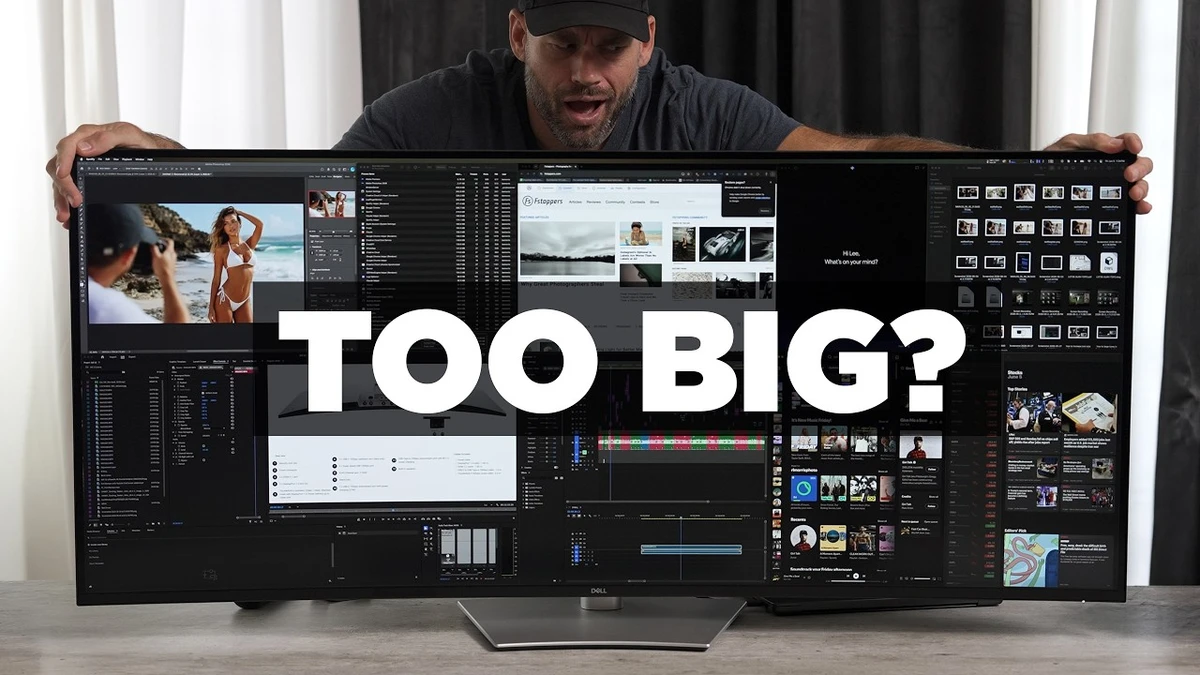
For about two years, I’ve worked on four 4K monitors. The setup was a huge pain to build, and honestly, it’s kind of ugly. So when the Dell UltraSharp 52 Thunderbolt Hub Monitor came out, a single 51.5-inch curved screen at 6,144 x 2,560 and 120 Hz, I had to know whether one giant monitor could replace my mess of four.
One Cable for Everything
This isn’t just a giant monitor. It’s also a USB-C hub. With a single cable, the whole screen comes to life at full resolution and 120 Hz, and you get every port you could need on the back, plus a few more that pop out from the front edge. I love that feature.
My quad setup also runs on one cable, but to do it I’m using one of the most powerful docks on the market, the iVANKY FusionDock Ultra, which I reviewed here. The Dell gets you most of that in the monitor itself.
Image Quality and Pixel Density
The design is beautiful and far cleaner than my quad setup. The colors are accurate, the contrast looks fantastic, and the blacks are nice and dark.
Resolution is where it’s a step down. A 27-inch 5K monitor has about 218 pixels per inch, and my 27-inch 4K monitors have about 163. The Dell has about 129. At my sitting distance I can see the difference, but it’s not a deal breaker. Text still looks good, and if I pushed the monitor back a few inches, I doubt I’d notice it at all.
Why Four Screens Works for Me
If you’ve never used multiple monitors, four screens probably looks like overkill. The thing people miss is that I’m not looking at everything at once. I use one screen at a time, and I keep the same apps in the same spots. My Finder windows live in one place, my AI apps are always open in another, and when I open Premiere, I can spread it across two screens while everything else stays within reach.
Two Problems With the Dell
The first is a little silly: the monitor won’t sit perfectly level on its stand. One side is always slightly higher, and no matter what I do, it drifts. I read through the reviews on Dell’s site and found at least one other person with the same complaint. Interestingly, Dell sells it without the stand for less, and at the time I checked, that saved $700 total. I’d bet a third-party stand holds it straight. Otherwise, the stand moves up and down easily and tilts forward and back so you can set it right in front of your eyes.
The second matters more for me. I record my screen constantly for videos. On my quad setup, I press Command-Shift-5, choose to record the entire screen, and click the one monitor I want. On the Dell, I either record the whole thing and crop it in Premiere, which wastes time and resources, or I draw a custom area, which breaks the moment a window opens slightly off center or at a different size.
The Curve
This is probably the least curved curved monitor on the market. The benefit of a curve is that the edges stay the same distance from your eyes as the center. If I were gaming, I’d want a much stronger curve. But even this slight curve was a shock. I work in Photoshop constantly, drawing boxes and straight lines, and for the first few days I could see straight lines warping. For reading web pages or charts, I’d be fine with it. For image and video work, not seeing perfectly straight lines really bothers me.
One Big Screen vs. Four Small Ones
With four separate screens, you can’t use them as one giant display, and macOS won’t let you stretch a window across them. For me, that’s actually a plus. When I hit full screen on a video, it fills just one monitor instead of taking over everything. On the Dell, when I preview a file from a small window, it fills the entire 52-inch screen, and I have to shrink it or back way up to see it.
Four monitors also give me a menu bar at the top of each screen. On the Dell, macOS puts the menu bar for every app in the far top-left corner, so even if I’m working in the bottom right, I have to travel all the way up there. I also run two hidden docks on my bottom monitors that appear when I move the mouse down.
The Dell can mimic multiple monitors. Plug in more than one cable and you can split it into, say, a narrow screen on the left and a large one on the right, or a big center screen with two on the sides. I tested that, and it fixes a lot of the menu bar issues. But because my four monitors are each angled straight at me, using every one of them is comfortable. On the Dell, the edges are so much farther away than the center that using them becomes annoying.
The Deal Breaker: Scaling
The real reason this monitor won’t work for me is that I can’t get the scaling right in macOS. At the smallest scaling setting, text is just slightly too small, so I pulled the monitor closer. Then the lower pixel density shows, and looking at the edges feels like reading a piece of paper turned at an angle. At the next size up, everything is too big. I can push the monitor back and it looks sharper, but I lose the real estate I need to keep 10 apps open.
I tried BetterDisplay, an app that lets you fine-tune scaling in macOS, but the in-between settings looked noticeably softer, which comes down to how macOS handles scaling. Windows gives you more options, and I got much better scaling there. Still, one reviewer on Dell’s site returned the monitor because they couldn’t get Windows scaling right either, so this isn’t only a Mac issue. With my four 27-inch monitors, I’ve found the exact distance where everything is comfortable and sharp.
My Verdict
After testing it, I’ve decided my ugly quad setup is still the best one for me. If I want better image quality, I can just buy better monitors. That said, I still highly recommend the Dell. I’m blown away by its image quality, color accuracy, and sheer size, and if you’re not as particular as I am about resolution, scaling, or a slight curve, you’re going to love it.
If productivity matters most and you don’t like curved screens, four monitors is the best setup I’ve found, and it’s far cheaper. My whole setup, with four Dell 27-inch 4K monitors on a quad monitor stand, cost about $1,300, while the 52-inch Dell is about $3,000.
And if you’re shopping for a monitor this expensive, you probably have a dead drive or memory card in a drawer somewhere. SalvageData, the sponsor of this video, has recovered a failed Synology NAS for me and an old Drobo I’d been holding onto for more than eight years.