



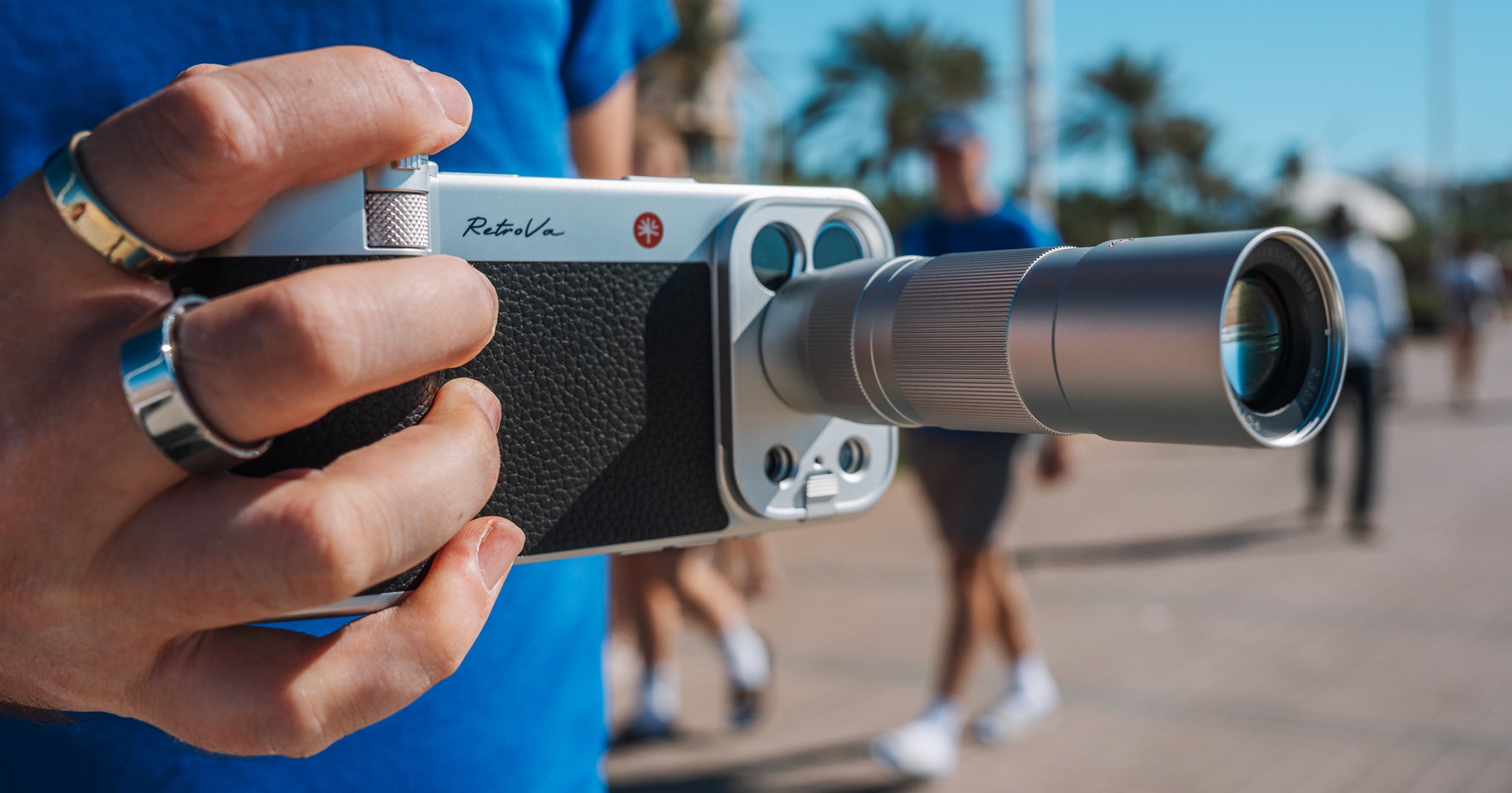
PGYTECH is best known for camera bags, tripods and straps, and in the phone world for telephoto extender lenses designed for Vivo and Oppo flagships. Its RetroVa kit brings that lens work to the iPhone.
At a Glance
The system first appeared on Kickstarter in January 2026 for the iPhone 16 Pro and 17 Pro families, combining a camera-style Bluetooth grip, retro-style case, and a 2.35x teleconverter for the phone’s telephoto lens. The newest version designed for the iPhone 17 Pro/Pro Max and 18 Pro/Pro Max series brings in a lighter and smaller 2X lens, along with a 4X telephoto lens as an alternative.
This all provides focal range that simply doesn’t work as well when using the phone itself. With 200mm, 235mm, and 400mm equivalents, the iPhone can reach farther with more optical clarity. A dedicated app also offers old school film simulations and manual controls for composition to let you decide how you want your images to look.
The RetroVa Kit and Setup
The RetroVa All-in-One Ultimate Gift Set comes in Graphite Black, while the 4X lens, grip, and the case are also sold separately and in smaller bundles, offering users different ways to put the kit together.
RetroVa Black Friday deal: From November 19 to 30, the RetroVa All-in-One Ultimate Gift Set (Graphite Black, iPhone 17/18 Pro Max) is 10% off, and PetaPixel readers can take an extra 10% off with code BYTEDDYK. Buy it on Amazon or directly from PGYTECH.
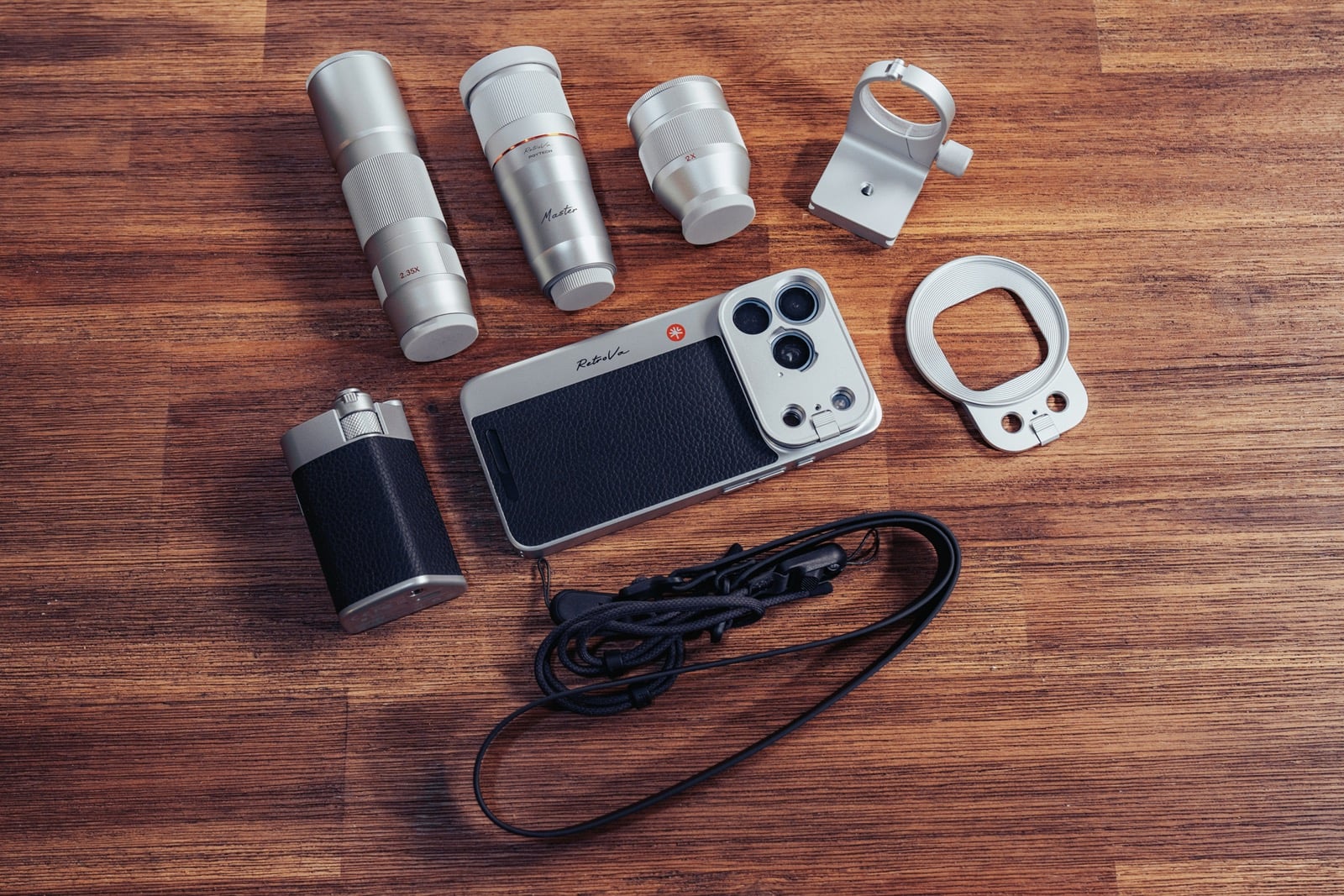
The Ultimate Gift Set brings them all together in the box: the 4X telephoto lens, a lens adapter bracket, lens pouch, RetroVa phone case, grip, a photography strap, and an Arca-Swiss compatible tripod collar for the lens. The case is polycarbonate and works with MagSafe, leaving the proverbial door open for additional magnetic accessories. Though it has a lip over the edges, you can still use the case with a screen protector on the phone itself.
The lightweight grip weighs 63 grams for the Pro and 65.4 grams for the Pro Max. It carries physical controls, a built-in microSD slot, and a standard 1/4-inch socket on the base for tripods and monopods. It slides into the phone’s USB-C port with a lock switch that holds it firmly in place, though it actually pairs and connects to the device via Bluetooth.
It’s important to get the right size because there are separate variants for the Pro and Pro Max. While the lens mount is the same on either build, you can’t slide a Pro grip into the Pro Max, for instance. That also goes for the case, which is the most integral piece because that’s what everything else in the kit attaches to. Fortunately, since the iPhone 17 Pro and 18 Pro models share the same dimensions, you don’t need to worry about compatibility in that regard.
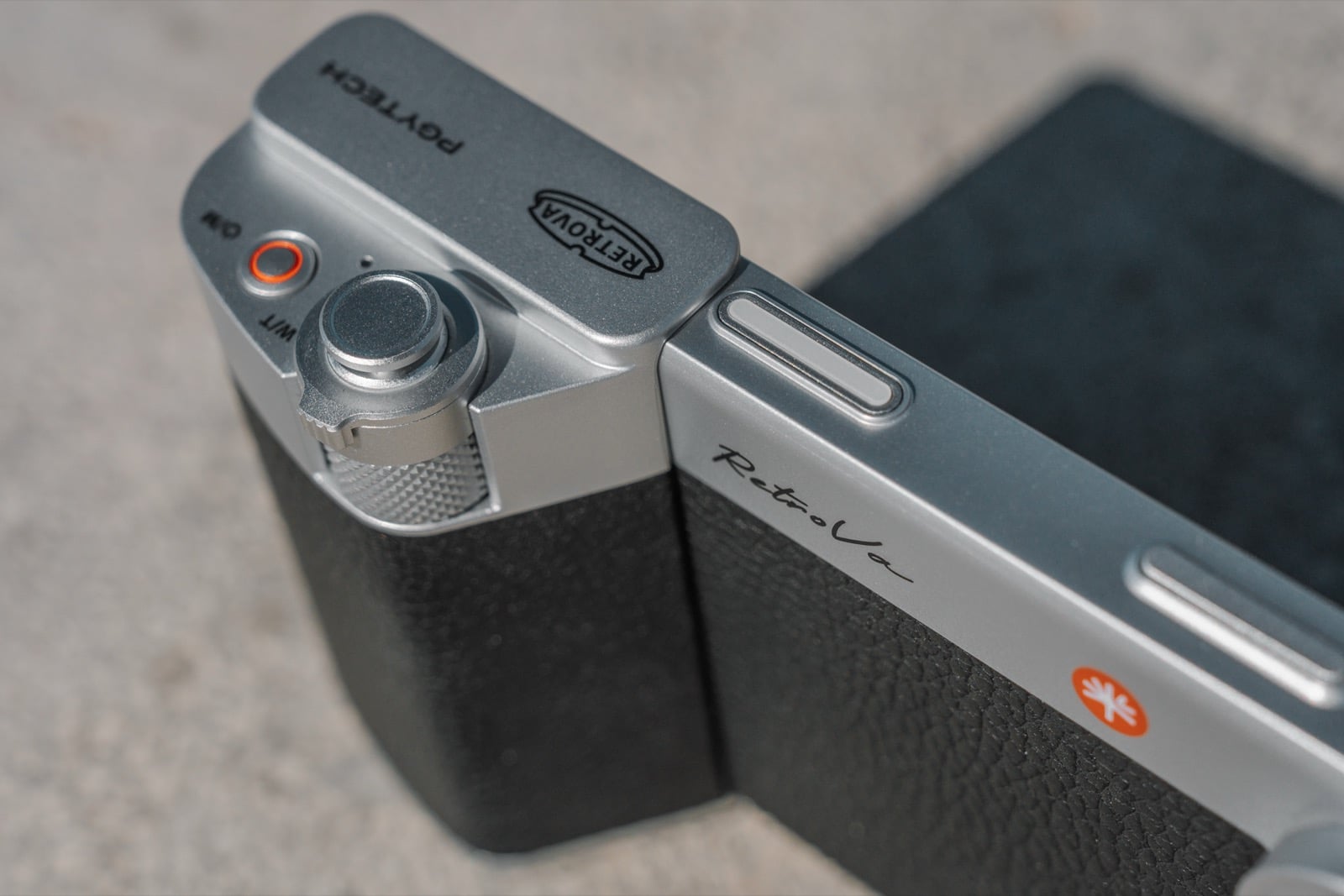
The shutter button functions a lot like a typical camera would: half-press to focus, press to take the shot, or hold it down for a burst. The zoom lever right under it can either skip between focal lengths in Vintage mode or adjust zoom more freely in the Standard setting. Below that is the control dial that you can choose to adjust exposure, ISO, white balance, or shutter speed. Lastly, the multi-function button acts as power on/off, switches modes, and sets up Bluetooth pairing. A small LED next to it indicates pairing and a solid connection.
The microSD card slot (UHS-I or UHS-II) underneath is another handy way to save excess photos or video, albeit with some key parameters. You can readily save RAW photos or 4K video to it, only you’re limited to HEVC-coded footage and max 120fps. Plug the grip into a laptop where you can then offload the content directly.
If you record in Apple’s Camera app, video automatically goes to the card when you use supported formats, while PGYTECH’s app supports more recording formats. Even third-party apps that can record to external storage can recognize the card, too.
PGYTECH also makes 62mm and 67mm filter adapter rings sold separately from the available kits. They’re not included in any of them, though will work just fine with any filters in those two respective sizes. Being a separate piece, you just slide out the lens adapter ring and bring in the filter adapter instead. There is no way to use a filter with the teleconverter lenses themselves, since the filter adapter covers the iPhone’s entire rear array.
The Camera App
PGYTECH designed the kit to work with a dedicated companion app called PGYTECH: Pro Camera & Editor. It’s free to download, only requiring iOS 17 or later to run. You do, however, need to be diligent about keeping it up to date because if you don’t, the app may lock you out of all the manual control settings. A pop-up notice stating that a subscription is required to unlock those pro features isn’t actually necessary. Update the app and that message disappears.
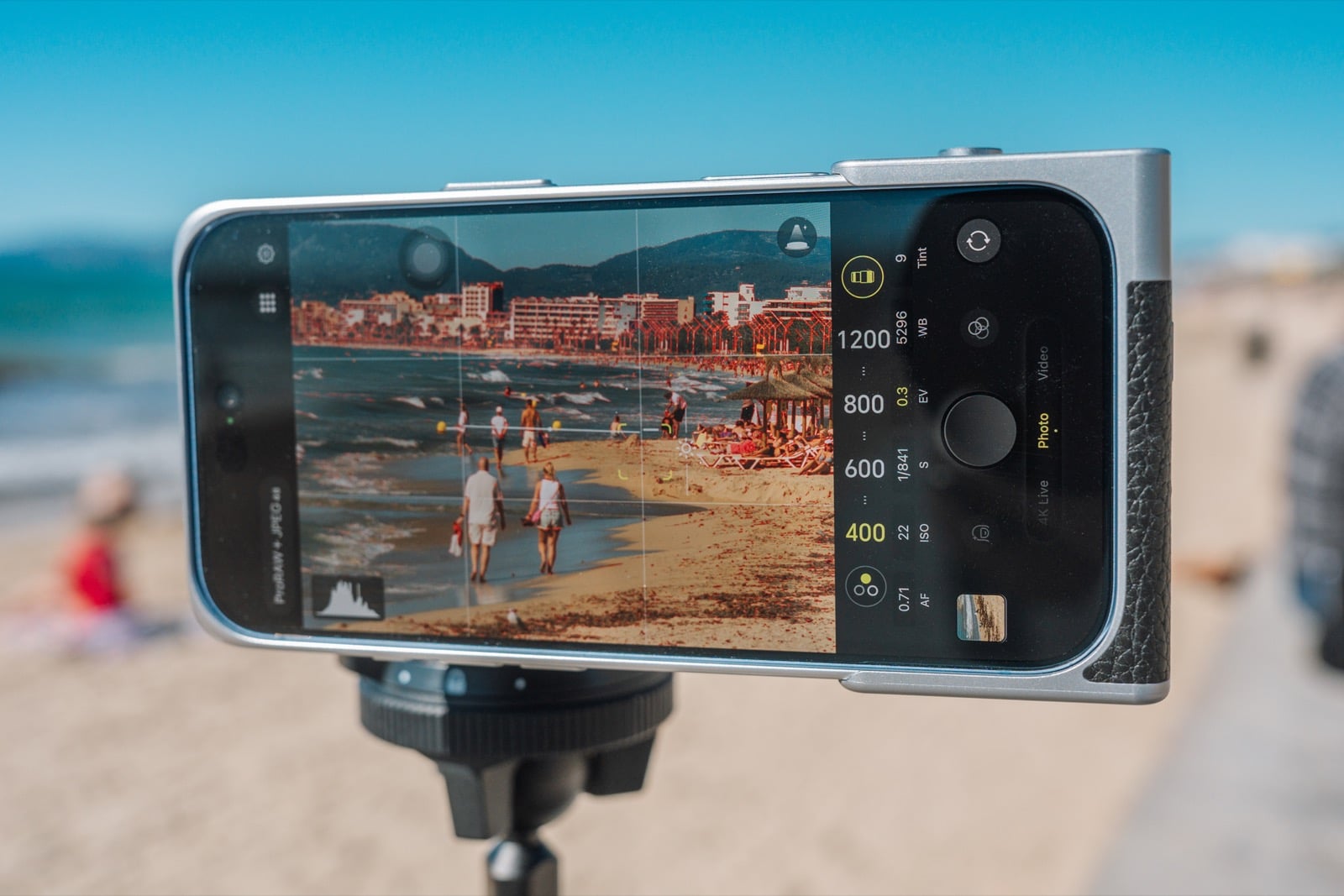
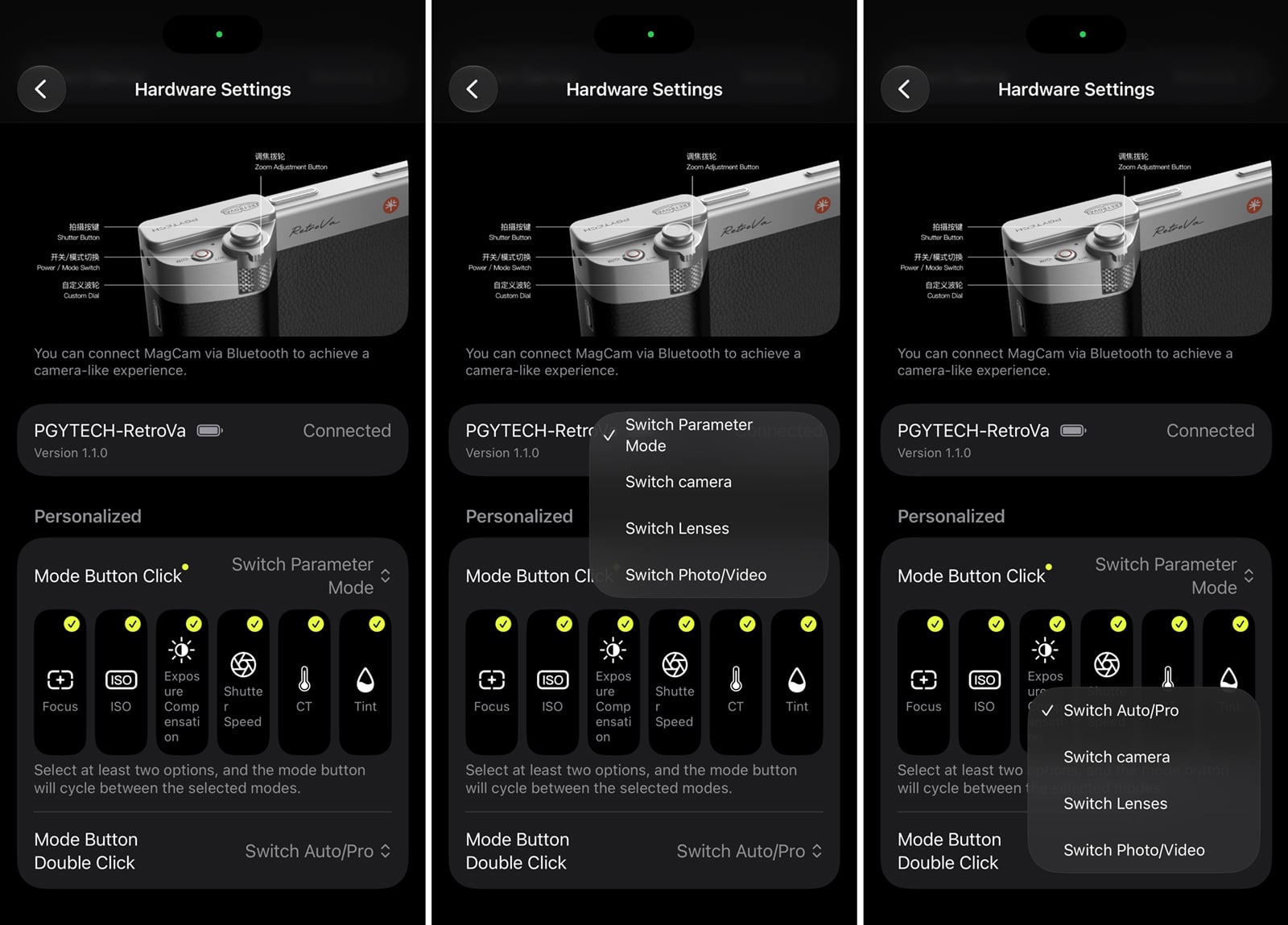
While there is an Auto mode available, Manual provides controls for exposure, shutter speed, ISO, white balance, tint, and filters, which you can then map to the grip by going to Settings->Hardware Settings. You will need to ensure the grip is on and once connected via Bluetooth, select RetroVa in the drop-down menu to pick what you want. At any point within that section, you can always look at tutorials on connecting the grip and a video FAQ as well.
Unless you explicitly make your own manual adjustments, the app’s camera interface treats everything as if it was in Auto. So, shutter speed, ISO, white balance, and tint will all dynamically shift based on what’s in frame. Tap to focus works just like any other camera app would. One difference, though, is if you have Focus Assist on (focus peaking by another name), you will see where the camera is actually focusing after you tap, giving you an indication of where the focal plane is.
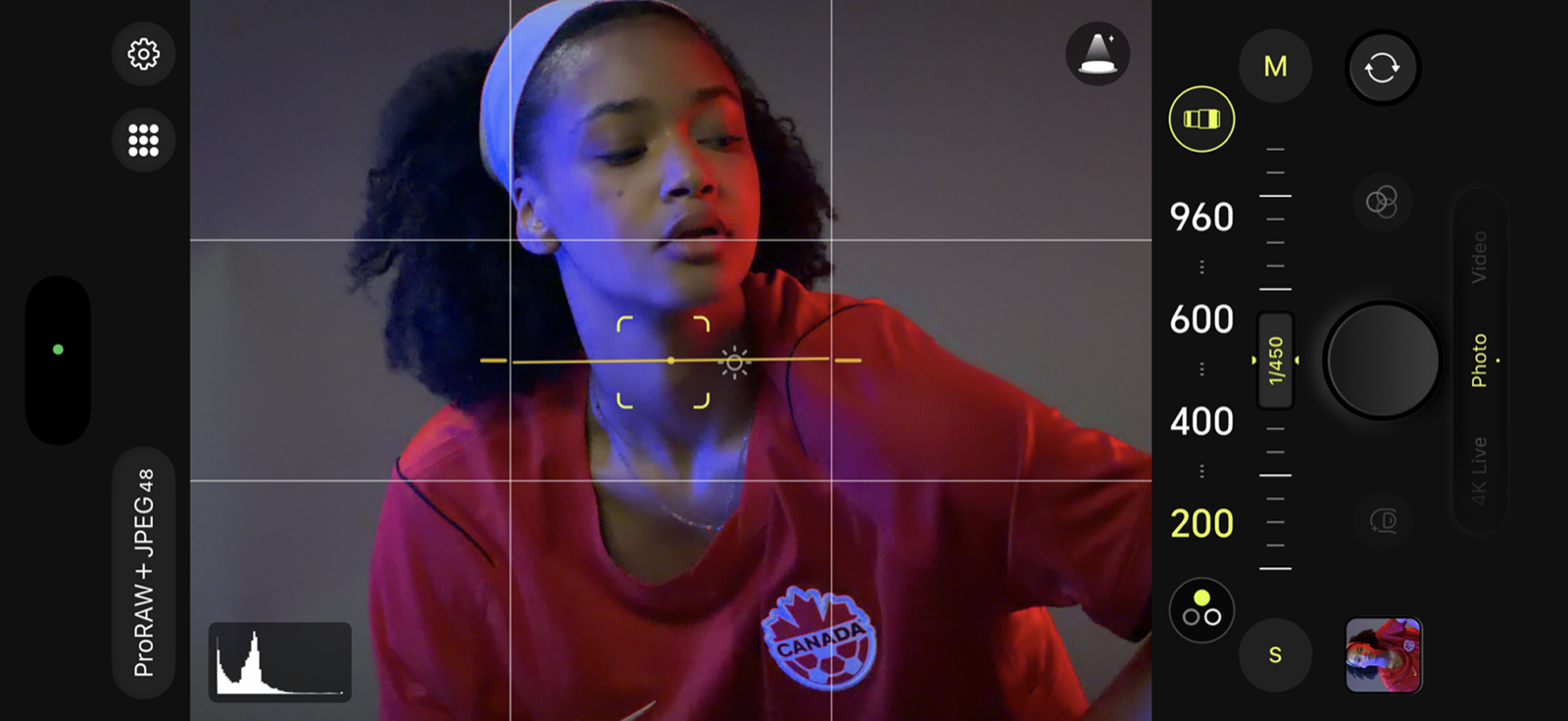
Other manual controls, like a histogram and priority facial recognition (the camera will always focus on a face first in this setting), are elective. Standard bits, like a timer, live photo, watermark, and aspect ratio (1:1, 4:3, and 16:9) round out much of what’s left. There is a Dive Mode that switches controls to physical buttons for underwater photos and video, while also applying an “underwater filter” as a copy of the original when captured. You can make separate manual settings adjustments for this mode, too.
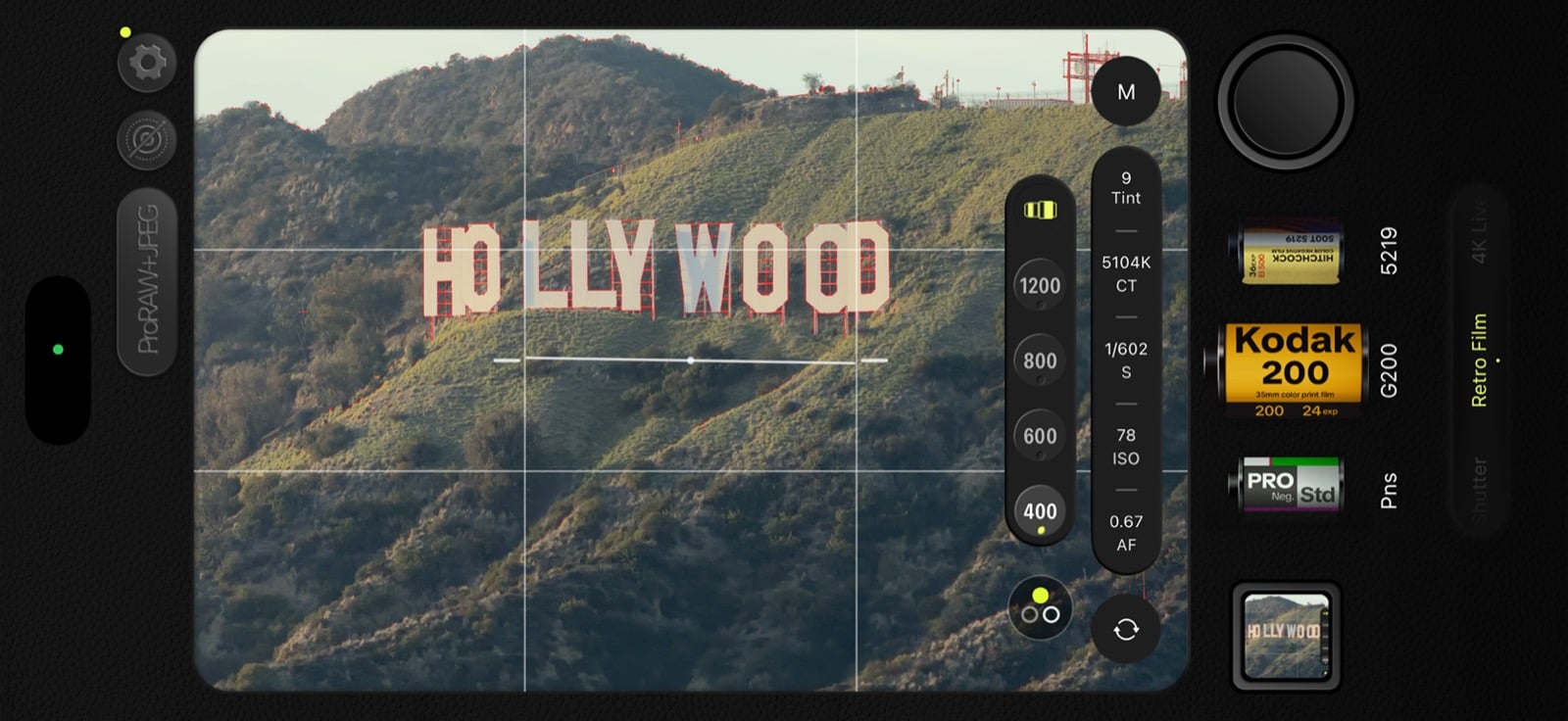
In addition to about 15 standard filters, PGYTECH offers a series of nostalgic film simulations, ranging from Classic Negative and Nostalgic Negative to Kodak Gold 200, Fujifilm PRO Neg Std, Velvia 100, Classic Chrome, FujiColor C200, Tungsten 500, and Bleach Bypass. Choose any one at any time and adjust the intensity from 0-100. These simulations apply no matter what image format you shoot with and aren’t limited to still photos: they work with video, too.
The app includes a Retro Film mode that features the same set of film simulations, except it changes the hybrid zoom ranges to include 35mm and 50mm equivalents to better match traditional prime lenses. Otherwise, images process the same way as the Photo mode.
It’s also possible to apply any of these filters on a photo after you capture it within the in-app editing suite, including HSL for some color grading. Beauty features also present a variety of options for those seeking that kind of detail. Under Creative, there are templates for sharing or social media.
An on-device AI tool in the Adjust section lets you try enhancing detail in images by either using HD to improve clarity or AI HD to restore detail in softer images. You need to download it to make it work on-device rather than in the cloud but once it’s there, you can utilize it any time. If you’d rather avoid AI completely, you don’t have to use it.
Mind you, you’re not forced into PGYTECH’s app for basic shooting (without the lenses) since the grip also works with the native Camera app. To make that work with iOS, go to the Settings app, then Accessibility->Zoom->toggle On->Full Screen Zoom. At that point, having already paired it to the phone, you gain access to Apple’s own Camera app where pressing the shutter or zooming in responds onscreen. PGYTECH says it’s working on more third-party app integrations, so we’ll see where that leads.
Three Lenses at Your Leisure
The 4X lens is both the newest and the headline of the trio. It uses an 11-element, 3-group optical design with fluorite-grade low-dispersion glass and weighs about 137 grams. It feels sturdy in hand, which is why it’s smart to use it with the tripod collar when you need to prop it up for a long exposure or timelapse.
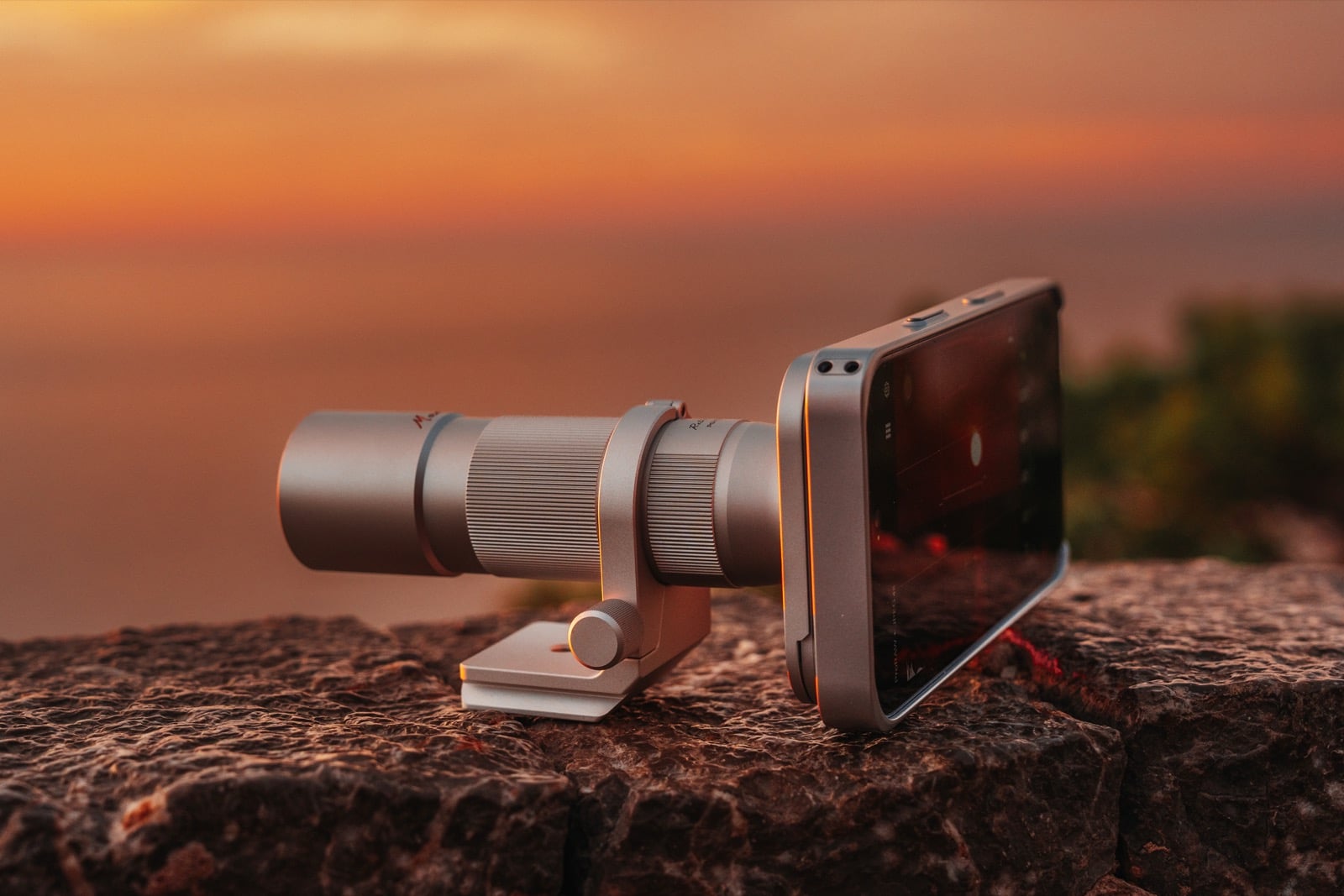

It’s a 400mm equivalent optical focal length, going up to 1200mm with a digital crop. The 4x lens also comes with a case and slightly different bracket that also includes a mount for the iPhone’s main camera. That gives you a 240mm optical equivalent or 400mm with an in-sensor crop with more background separation, which PGYTECH pitches for portraits.
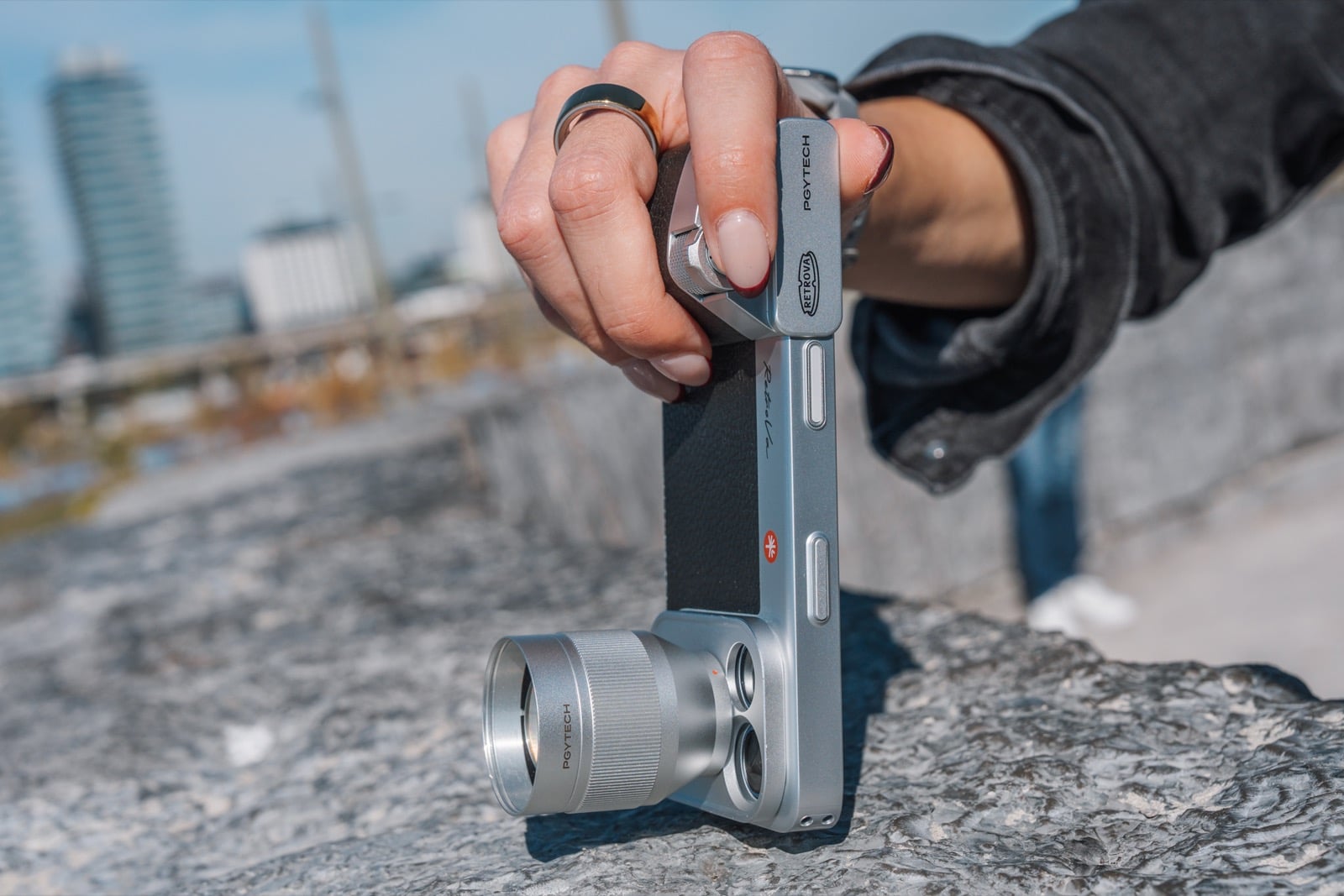
The 2x lens, at about 104 grams, gives 200mm optical and 400mm cropped over the telephoto camera, or 105mm and 200mm over the main camera. This lens doesn’t come with a case but does include the same lens bracket the Ultimate Gift Set does, which only covers the phone’s telephoto camera. That’s an important distinction if you’re looking to use any of the lenses on both the main and telephoto cameras.
In the case of the iPhone 18 Pro and 18 Pro Max, the PGYTECH app can’t control the main camera’s mechanical aperture, so you can’t benefit from stopping down to f/4 for certain photo or video opportunities. Either way, all three lenses fit any of the RetroVa cases and brackets made for the iPhone.
One thing to always keep in mind is how much attaching the lenses considerably increases minimum focusing distance. PGYTECH lists 16.2 meters for the 4x over the telephoto camera and three meters over the main camera, against 5.22 meters and 60 centimeters for the 2x. There’s no optical image stabilization in any of them, so PGYTECH relies on its app’s stabilization algorithm for steadier handheld results. Handheld, the kit is better now than it was just a few months ago.
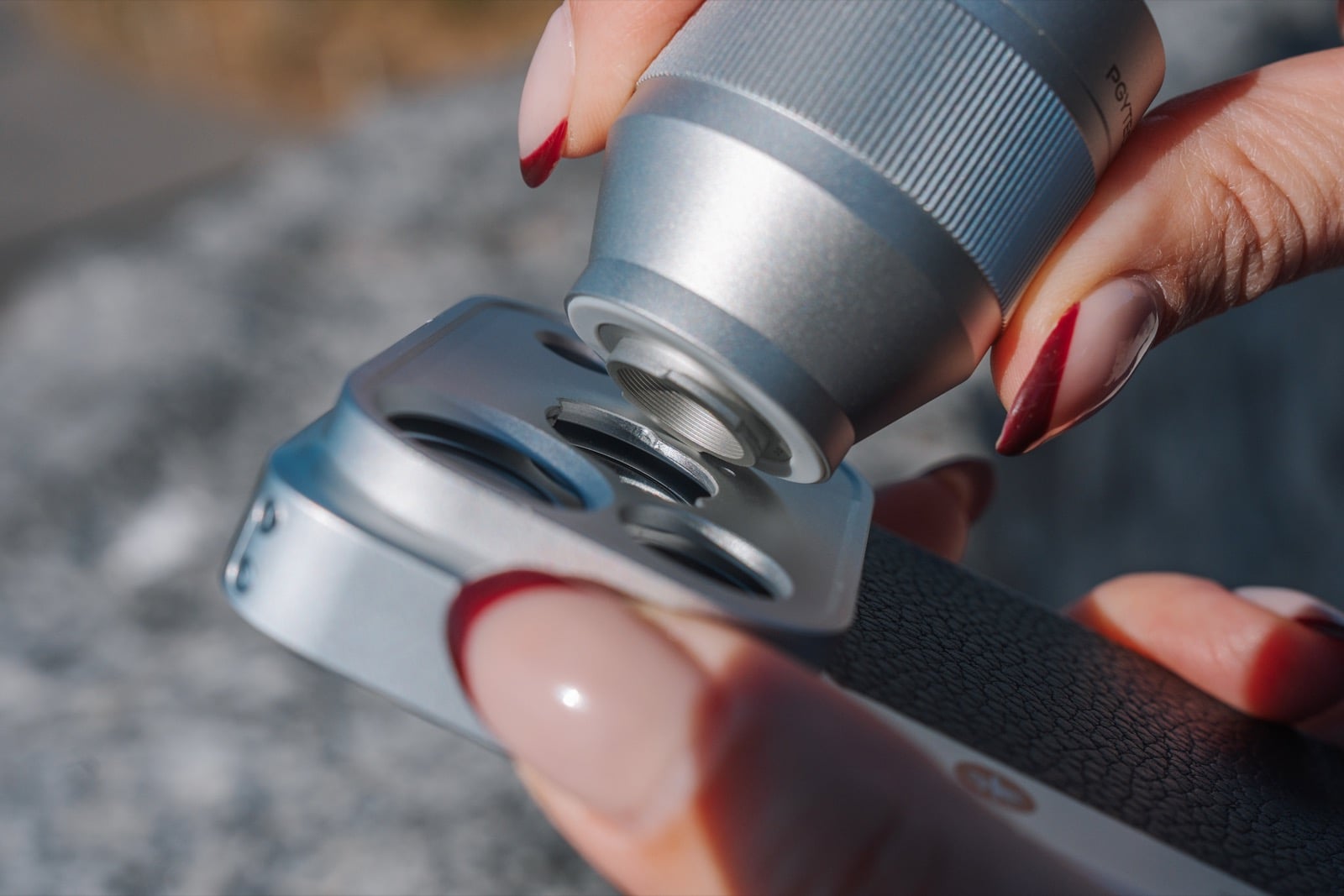
There’s nothing electronic communicating between the lenses and the app, so you have to manually select the lens you’re using and then turn that off or switch if you end up putting on another one. Doing so makes corresponding changes to available focal lengths and ensures focusing and processing fall in line with what you’re using. It’s one of the easiest things to forget while shooting with it in the field but it’s vitally important.
Technically, the lenses aren’t supposed to work with Apple’s own app, though I randomly found no obstruction in doing so. Other times, it didn’t work at all. This has nothing to do with the kit and everything to do with how Apple engineers its camera array. Because it functions as one virtual system, the software can decide what it thinks is the best camera, even though you’ve already chosen one over another. PGYTECH’s app doesn’t do that, leaning purely on whichever camera you’ve attached the lens to capture images or video.
If you get lucky enough to make Apple’s app work, it gives you access to manual controls (in the 18 Pro and 18 Pro Max) as well as the possibility of manipulating the variable aperture with the main camera. It’s just a very hit-or-miss proposition, so your experience may truly vary.
Shooting with RetroVa
As a kit, the RetroVa is trying to present a camera-like feel to capturing photos and video on the iPhone. That’s the basic gist, but in practice, the handling offers a fairly high degree of versatility in both perspective and ergonomics. Without having to stretch out a thumb or finger to hit the onscreen shutter, the grip’s controls make low or high-angle shots easier to manage. Double-clicking the iPhone’s Camera Control will launch Apple’s Camera app but if you prefer to switch that to PGYTECH’s app within iOS, go to Settings->Camera->Camera Control and tap on it to make that the default.
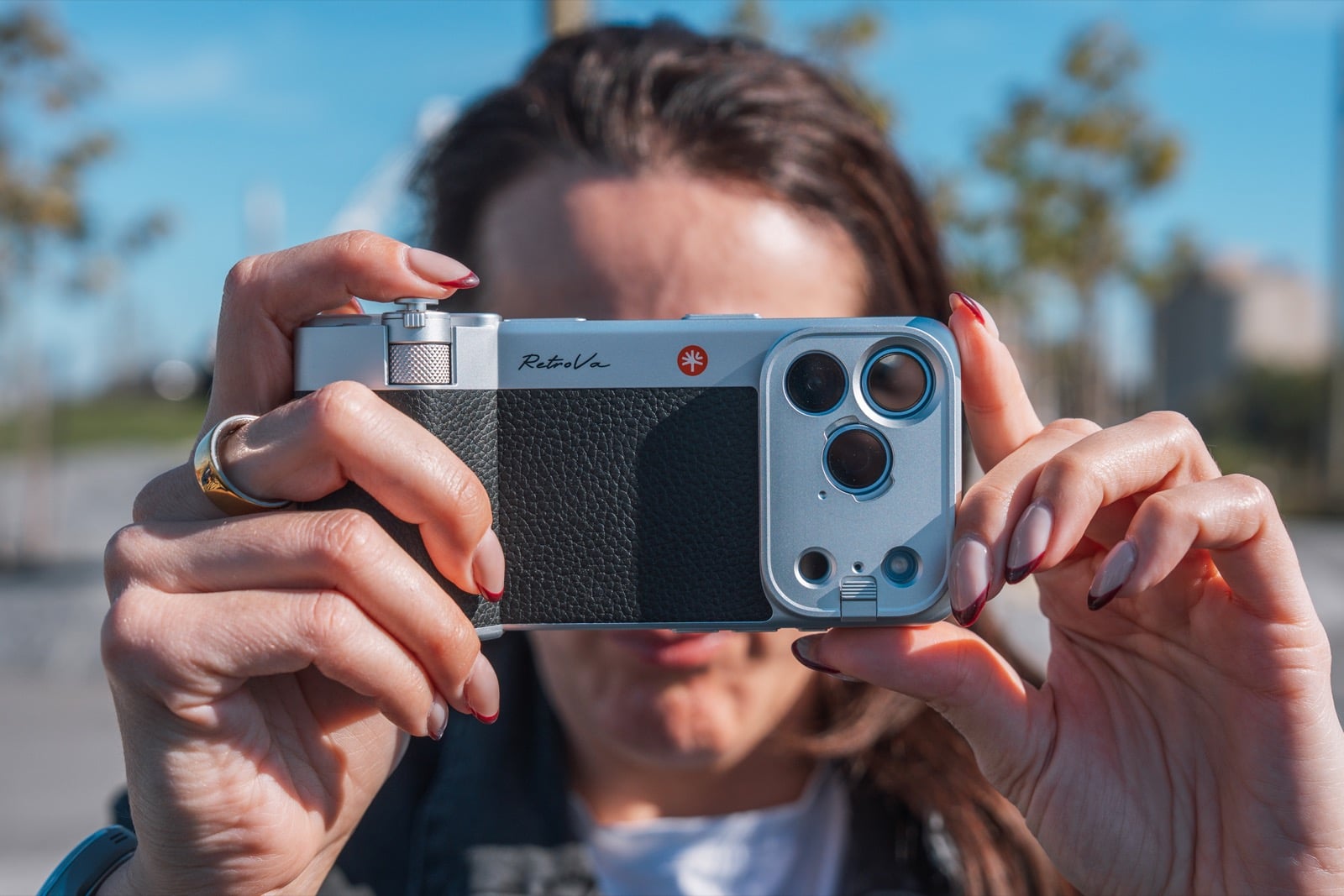
In the four months I’ve been using the kit (both with the iPhone 17 Pro and 18 Pro), multiple updates over that time have either added new features or refined existing ones. One thing you have to always remember is that this app processes images slower than Apple’s app does, especially when shooting in ProRAW. You can see that in the preview window where a yellow indicator shows that it’s rendering what you just shot.
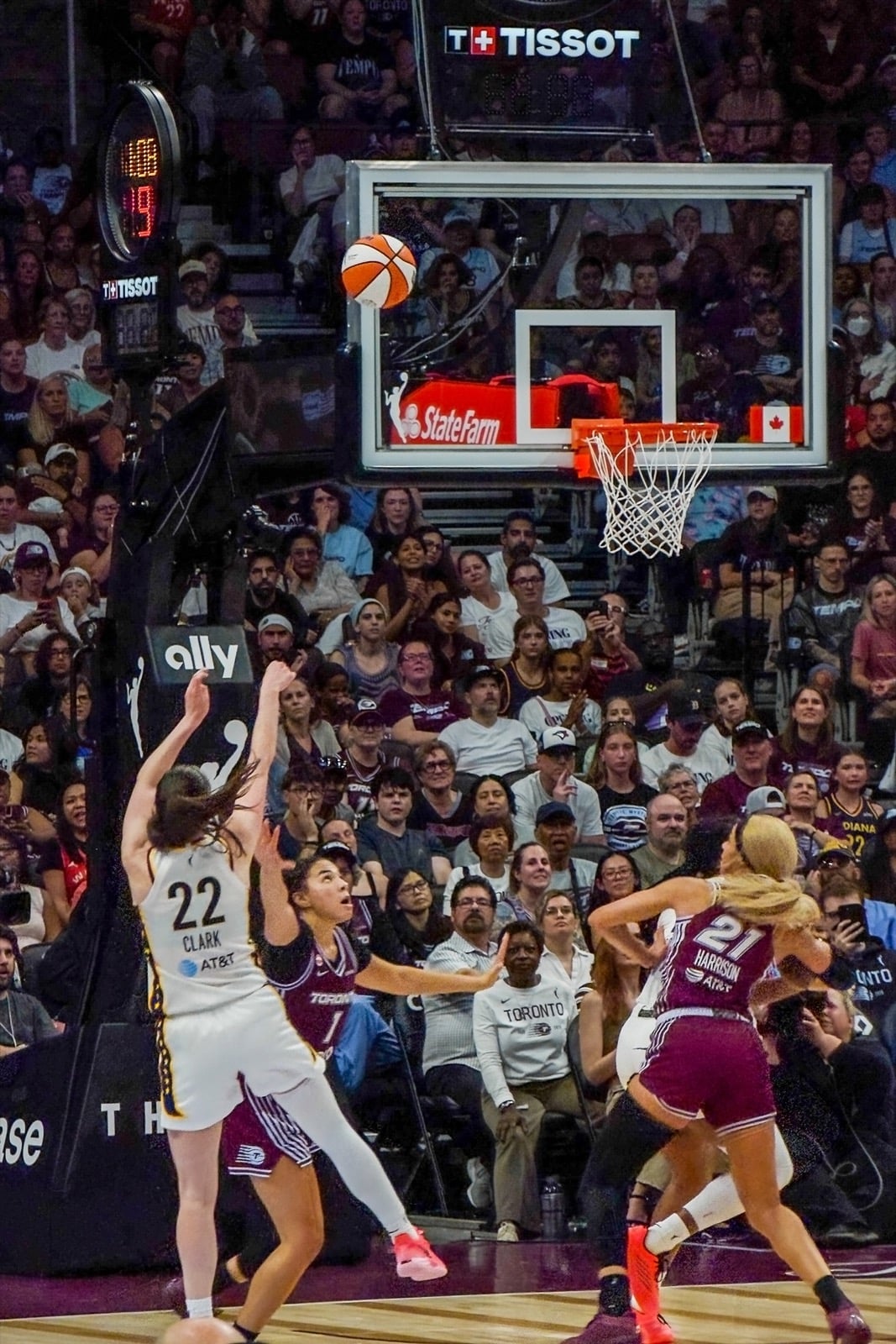
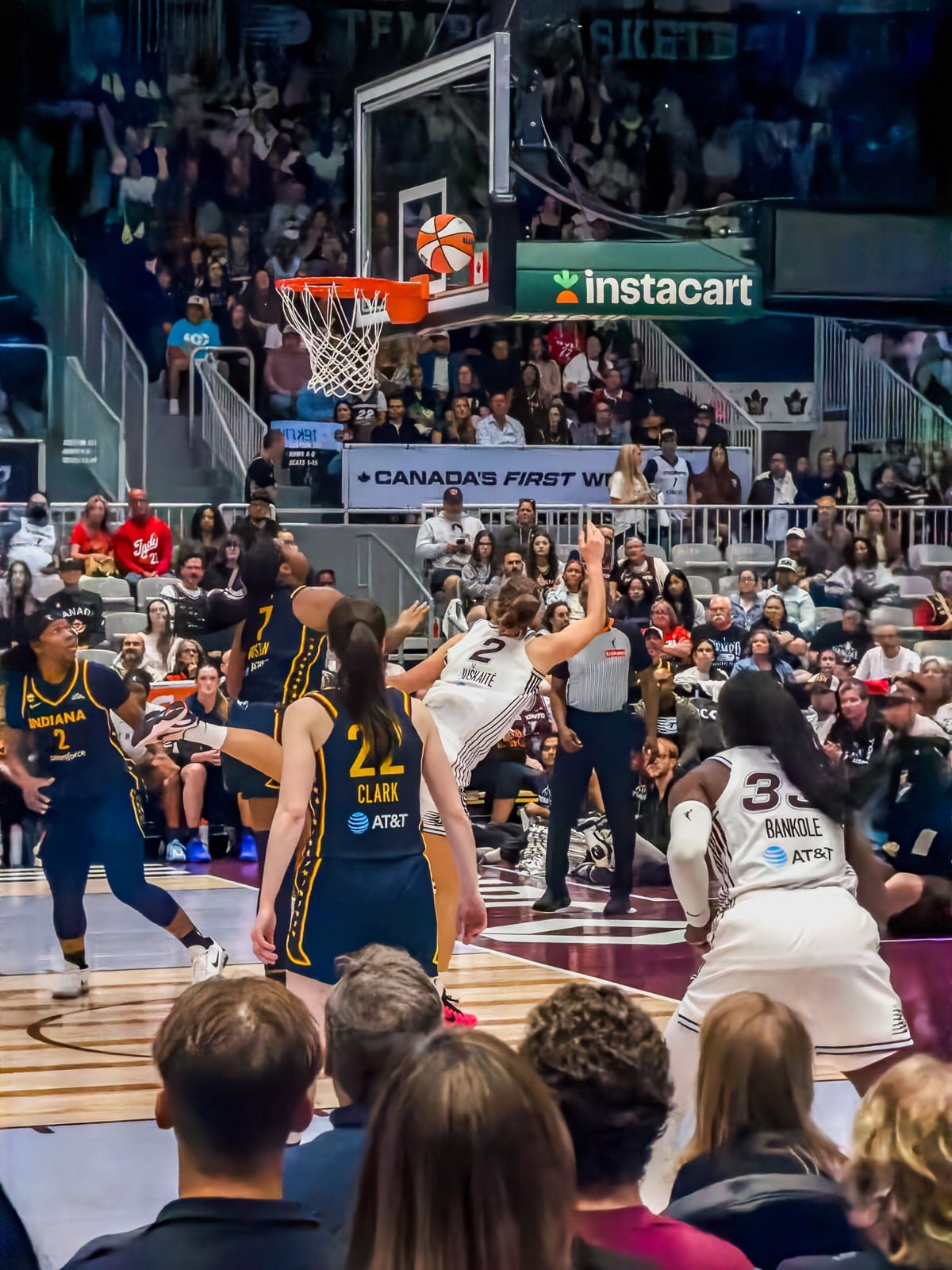
The reason that matters is because it’s easy to ruin a photo by quickly moving the camera after capture. That very brief window between snapping the shutter and seeing the resulting image populate the preview window can feel like an eternity when shooting action, like I did at multiple WNBA games with this kit. It’s faster if you’re purely shooting JPEG or HEIF but the same thing can happen if you’re a little too eager to see what you just got.
Part of what PGYTECH is up against is the smaller 1/2.55-inch sensor Apple uses for the telephoto camera on both the 17 Pro and 18 Pro series. Adding significant optics to that lens certainly gets you closer to the subject or action but it’s best to also learn the subtleties of PGYTECH’s app. Lighting conditions are of paramount importance, as noise can creep in at higher ISO levels when you need to raise the shutter speed.
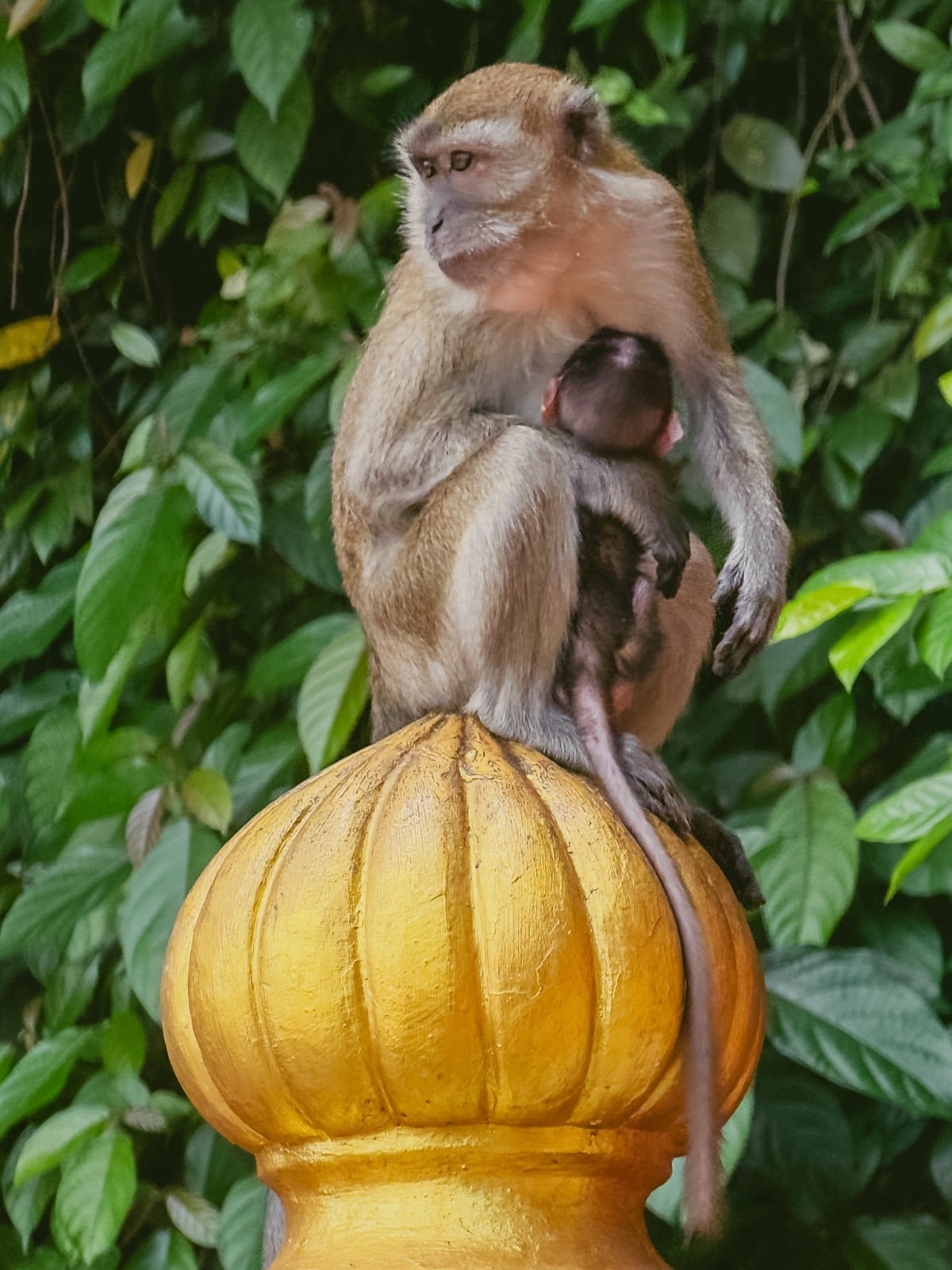
While you can shoot in either ProRAW, JPEG, or HEIF at either 12 or 48-megapixels, you don’t really wield any outsized control over the imaging pipeline. Apple’s processing engine still kicks in, forcing you to lean more on RAW images if you feel more comfortable with the higher degree of manual control available. PGYTECH isn’t necessarily only targeting seasoned mobile photographers with the RetroVa kit but it’s still worth dealing with the learning curve.


The controls include manual focus, with focus peaking as an elective option where you get to choose between red, green, or blue as the visual aid. It applies no matter if you’re tapping to focus manually or adjusting it in the slider. One key tidbit is tapping to focus doesn’t always work as you’d expect because focal length (even for the iPhone’s own lenses) behave natively. Within the app, there’s no fusion between them to enable, say, macro shooting at closer distances where the main or ultra-wide might step in to help the cause.
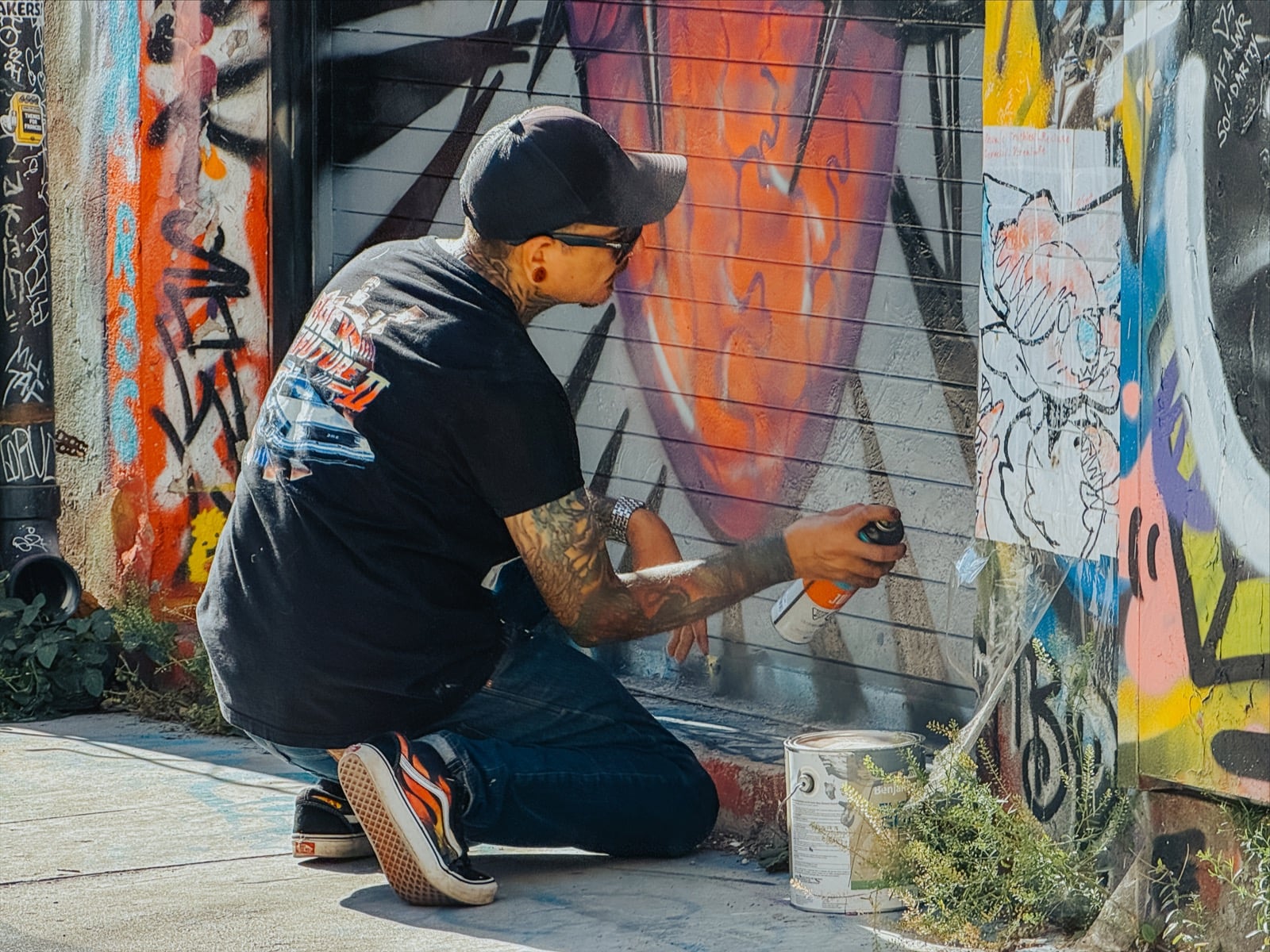
All that aside, the handling is a big part of the appeal here. As a slab device, the iPhone can prove tough to work with under different perspective and angles, so the grip turns it into something you can maneuver in more interesting ways. With a finger on the shutter and the ability to make granular adjustments with the dial, plus the strap to take off the weight, the creative possibilities certainly stand out.
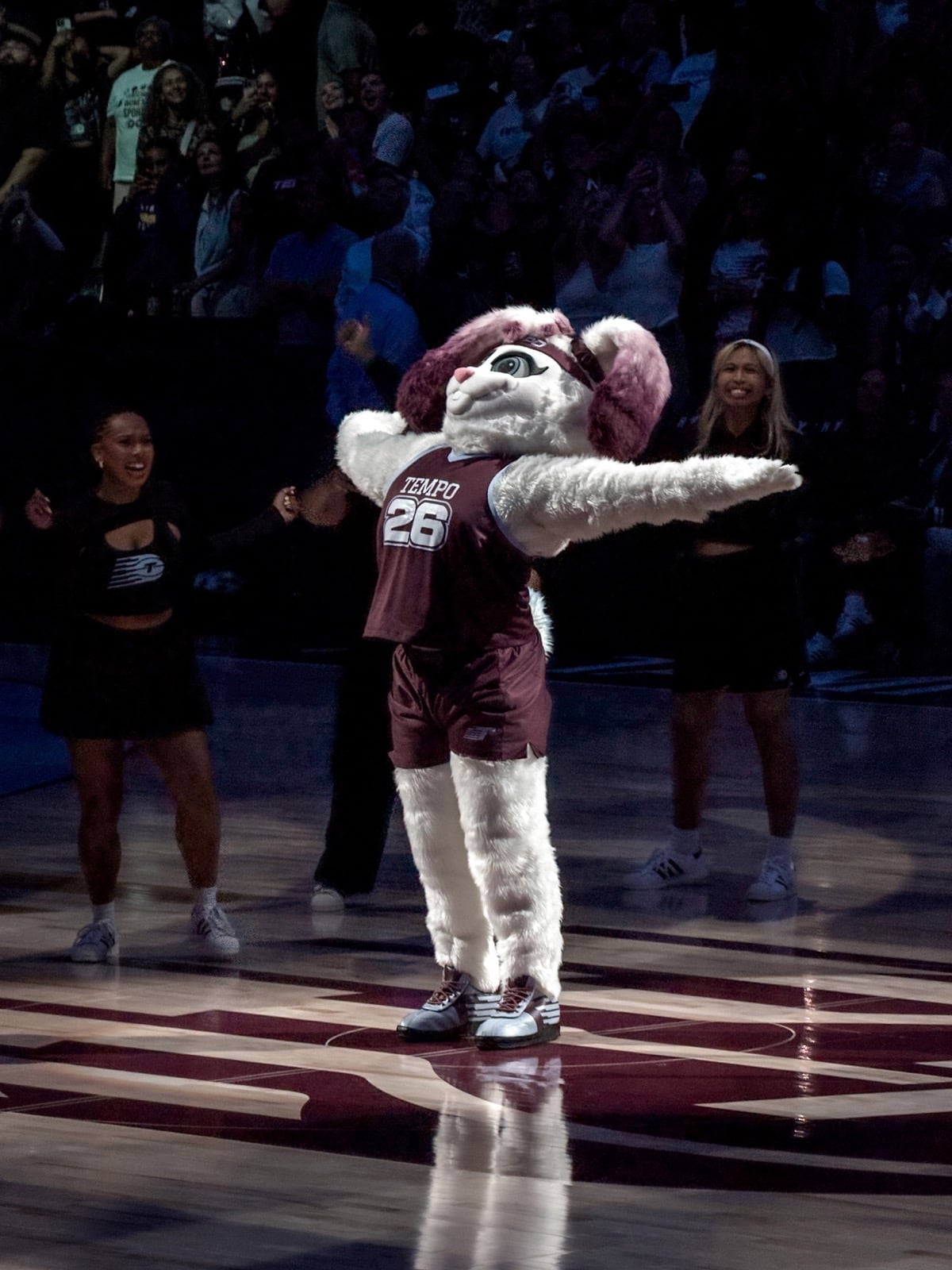
Focusing is the biggest challenge because subject tracking isn’t the same as Apple’s own implementation, and you often still need to tap on the screen to hone in on what you want the composition to look like. One workaround for that is to get a separate screen primarily used for rear camera selfies as a way to wirelessly compose a shot when it’s hard to contort yourself to see the real time preview on the phone.
What Comes Next for the RetroVa Kit
PGYTECH says it’s working on tracking autofocus and on controlling the iPhone’s aperture from the grip, which would address two key challenges in using the RetroVa kit. A universal lens adapter and further lens types are also on PGYTECH’s wish list, though no firm commitment.
For now, RetroVa is an iPhone-only system built around the Pro and Pro Max models, albeit with some nuances noted earlier. Not everything made for the iPhone 17 and 18 Pro series applies to what’s available for the iPhone 16 Pro series.
It’s also worth noting the kit isn’t a qualitative replacement for a mirrorless camera. The iPhone’s image sensors aren’t in the same league to begin with, but the app’s manual controls are far more extensive and the lenses a big upgrade over the awful hybrid crops the iPhone offers on its own. Compared to a bigger mirrorless, however, this kit is easier to carry, especially when you take off the lenses.

The RetroVa All-in-One Ultimate Gift Set is 10% off through November 30, plus an extra 10% with code BYTEDDYK, on Amazon and at PGYTECH.
Image creditsAll photos by Ted Kritosnis
Affiliate Disclosure PetaPixel articles may include affiliate links; we may earn a commission if you buy through one.